
Hello and welcome to this tutorial on how to create your first program in MATLAB! MATLAB is a powerful and versatile programming language that can be used for many applications, such as data analysis, simulation, visualization, and more.
In this tutorial, you will learn:
- the basics of MATLAB syntax
- how to write and run a simple script
- how to use some built-in functions and operators.
By the end of this tutorial, you will be able to create your own MATLAB programs and explore the possibilities of this amazing language. To get started, you will need to have MATLAB installed on your computer. You can download MATLAB from the official website or use an online version. Once you have MATLAB ready, you can open the MATLAB editor by clicking on the “New Script” button on the toolbar or by typing “edit” in the command window. The MATLAB editor is where you can write and edit your code, as well as save and run your scripts.
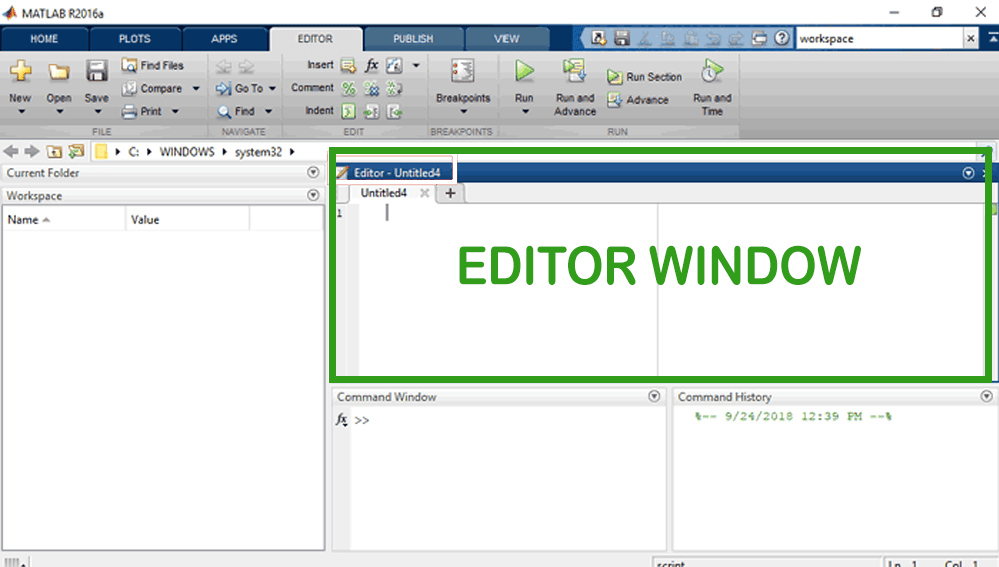
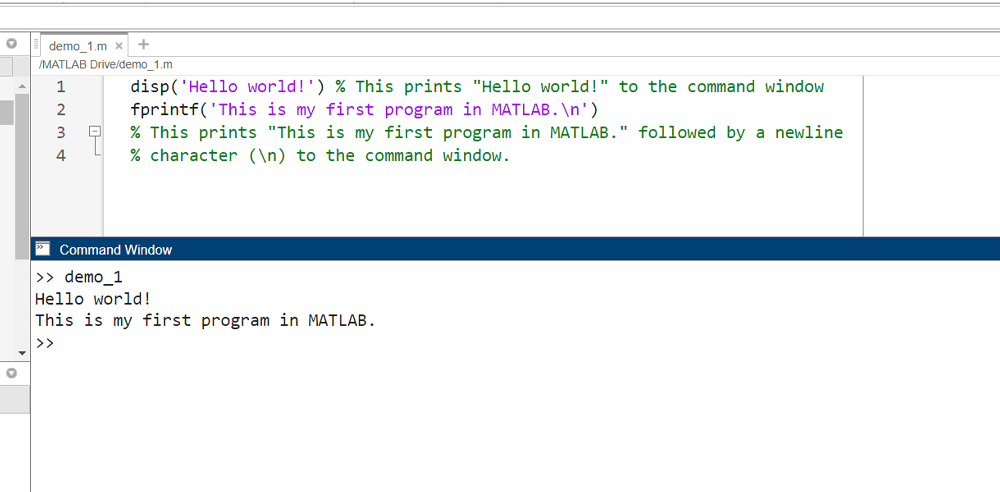
A script is a file that contains a sequence of MATLAB commands that can be executed together. A script can have any name, but it must have the extension “.m”. For example, you can name your script “my_first_program.m”. To write your first program, you will use some basic commands that print text to the command window. The command window is where you can interact with MATLAB by typing commands and seeing the results. To print text to the command window, you can use the “disp” function or the “fprintf” function. For example:
disp('Hello world!') %This prints "Hello world!" to the command window
fprintf('This is my first program in MATLAB.\n') %This prints "This is my first program in MATLAB." followed by a newline character (\n) to the command window.
You can also use variables to store values and use them in your commands. A variable is a name that represents a value, such as a number or a string. To assign a value to a variable, you can use the “=” operator. For example:
name = 'Bob' % This assigns the string 'Bob' to the variable name
age = 25 % This assigns the number 25 to the variable age
You can then use the variables in your commands by typing their names. For example:
disp(name) % This prints "Bob" to the command window
fprintf('I am %d years old.\n', age) % This prints "I am 25 years old."
% followed by a newline character (\n) to the command window
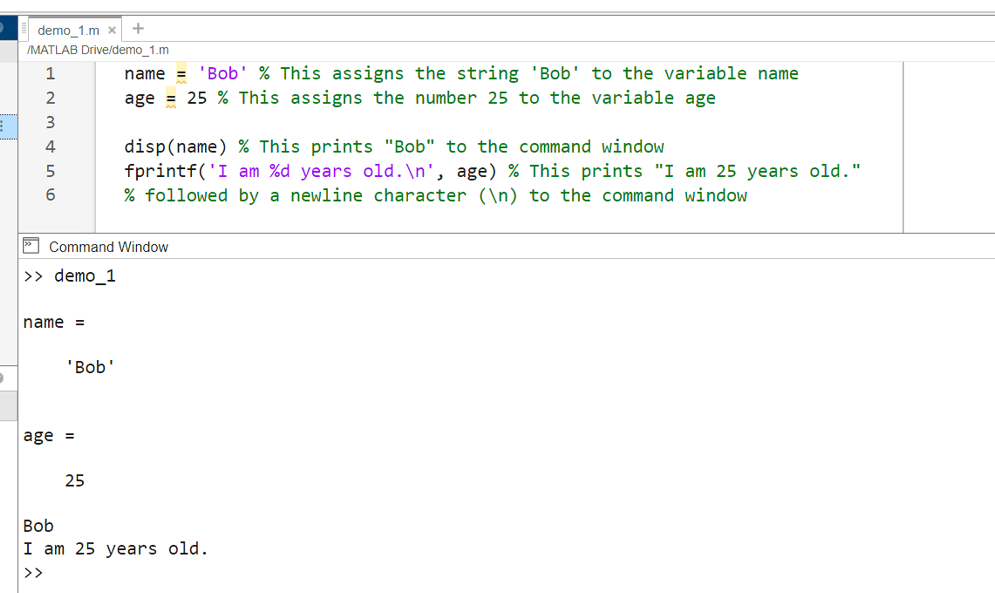
Note that when using “fprintf”, you need to specify the format of the value you want to print using a format specifier, such as “%d” for integers or “%s” for strings. You also need to separate the format string and the value with a comma.
To run your script, you can click on the “Run” button on the toolbar or type the name of your script (without the extension) in the command window.
Congratulations! You have just created and run your first program in MATLAB! You can now experiment with different commands and variables and see what happens. You can also use some built-in functions and operators that perform common tasks and calculations. For example:
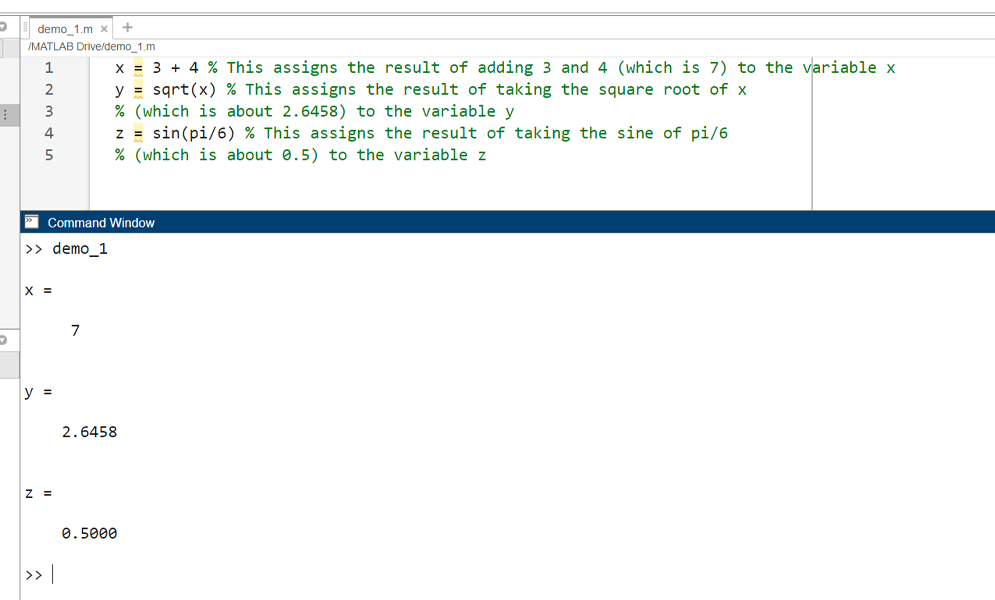
x = 3 + 4 % This assigns the result of adding 3 and 4 (which is 7) to the variable x
y = sqrt(x) % This assigns the result of taking the square root of x (which is about 2.6458) to the variable y
z = sin(pi/6) % This assigns the result of taking the sine of pi/6 (which is about 0.5) to the variable z
You can find more information about MATLAB functions and operators in the documentation or by using the “help” or “doc” commands in the command window. For example:
help sqrt % This displays help information about the sqrt function
doc sin % This opens a web page with documentation about the sin function.
That’s it for this tutorial! I hope you enjoyed learning how to create your first program in MATLAB and that you are excited to learn more. MATLAB is a fun and easy way to express your ideas and solve problems with code. Happy coding! ✌

