How to Draw a Chessboard in Python Using Turtle

Turtle is a built-in module in Python that allows you to create graphics and animations using a virtual turtle that can move and draw on the screen. In this blog post, I will show you how to use turtle to draw a chessboard with black and white squares. A chessboard is a square board with 64 smaller squares arranged in an 8 by 8 grid. Each square has a color, either black or white, and the colors alternate along the rows and columns. Here is the final output of the code:
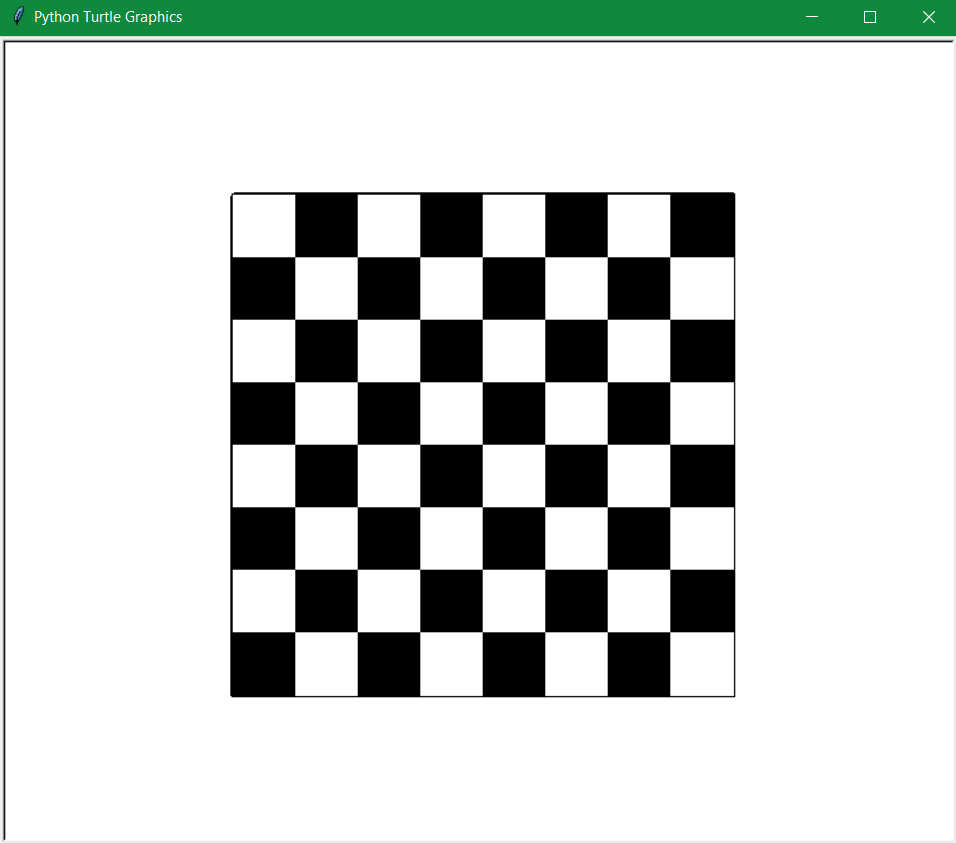
final-output-of-draw-chessboard-in-python
Final result: Chessboard

The Code

The code for drawing the chessboard is divided into three parts: importing the turtle module, defining some functions, and writing the main program. Let’s look at each part in detail.

Importing the turtle module

The first thing we need to do is import the turtle module and create a turtle object. We also hide the turtle so that it doesn’t show up on the screen. This is done by these lines of code:

import turtle 
t = turtle. Turtle() 
t.hideturtle() 

Defining some functions

The next thing we need to do is define some functions that will help us draw the chessboard. We will define two functions: one for drawing a square of a selected color, and one for drawing a row of alternate colors (black and white).

Drawing a square

The function for drawing a square takes a size parameter and draws a square of that size using the turtle. We also fill the square with the current color of the turtle. The function is defined as follows:

# this function draws square of selcted color 
def draw_square(size):
    t.down()
    t.begin_fill()
    for i in range(4):
        t.forward(size)
        t.right(90)
    t.end_fill()
    t.up() 

The function works as follows:

  • It lowers the turtle’s pen to start drawing (t.down()).
  • It starts filling the shape with the current color (t.begin_fill()).
  • It loops four times to draw each side of the square (for i in range(4):).
  • It moves forward by the given size (t.forward(size)).
  • It turns right by 90 degrees (t.right(90)).
  • It ends by filling the shape with the current color (t.end_fill()).
  • It raises the turtle’s pen to stop drawing (t.up()).

Drawing a row

The function for drawing a row takes a size parameter and draws a row of eight squares of that size using the draw_square function. We also alternate the color of the turtle between black and white for each square. The function is defined as follows:

# this function draws row of alternate color (black and white) 
def draw_row(size):
    for i in range(8):
        t.down()
        draw_square(size)
        t.up()
        t.forward(size)
        if t.color() == ("black","black"):
            t.color("white")
        else:
            t.color("black") 

The function works as follows:

  • It loops eight times to draw each square in the row (for i in range(8):).
  • It lowers the turtle’s pen to start drawing (t.down()).
  • It calls the draw_square function with the given size (draw_square(size)).
  • It raises the turtle’s pen to stop drawing (t.up()).
  • It moves forward by the given size to position itself for the next square (t.forward(size)).
  • It checks the current color of the turtle and changes it to the opposite color (if t.color() == ("black","black"): t.color("white") else: t.color("black")).

Writing the main program

The last thing we need to do is write the main program that uses these functions to draw the chessboard. We will do this by following these steps:

  • Set up some variables for the size and position of the board.
  • Set up some parameters for the speed and pensize of the turtle.
  • Set up the initial color of the turtle.
  • Draw a big square as the border of the board using the draw_square function.
  • Loop to draw eight rows of squares using the draw_row function.
  • Change the position and color of the turtle for each row.

The code for these steps is as follows:

# main program 
t.up()
sizeip = 400 # set size for board
(x,y)=(-sizeip/2,sizeip/2)
t.setpos((x,y))
t.speed(50)
t.pensize(4)
t.color("black")
t.down()

draw_square(sizeip)
t.pensize(1)
# this loop take turtle to next column and change its color
for i in range(8):
    t.setpos((x,y))
    if t.color() == ("black","black"):
        t.color("white") 
    else:
        t.color("black")
    draw_row(sizeip/8)
    y -= sizeip/8

turtle.done() # hold output on screen 

The code works as follows:

  • It raises the turtle’s pen to stop drawing (t.up()).
  • It sets the size of the board to 400 pixels (sizeip = 400).
  • It sets the initial position of the turtle to the top left corner of the board ((x,y)=(-sizeip/2, sizeip/2) t.setpos((x,y))).
  • It sets the speed of the turtle to 50 (t.speed(50)).
  • It sets the pensize of the turtle to 4 (t.pensize(4)).
  • It sets the initial color of the turtle to black (t.color("black")).
  • It lowers the turtle’s pen to start drawing (t.down()).
  • It draws a big square as the border of the board using the draw_square function with the size of the board (draw_square(sizeip)).
  • It sets the pensize of the turtle to 1 (t.pensize(1)).
  • It loops eight times to draw each row of squares (for i in range(8):).
  • It sets the position of the turtle to the top left corner of each row (t.setpos((x,y))).
  • It checks the current color of the turtle and changes it to the opposite color (if t.color() == ("black","black"): t.color("white") else: t.color("black")).
  • It draws a row of squares using the draw_row function with one eighth of the size of the board (draw_row(sizeip/8)).
  • It decreases the y coordinate of the turtle by one eighth of the size of the board to move to the next row (y -= sizeip/8).
  • It holds the output on screen until you close it (turtle.done()).

Conclusion

In this blog post, I have shown you how to use turtle to draw a chessboard with black and white squares. I have explained each part of the code and how it works. I hope you enjoyed this tutorial and learned something new. You can also modify the code to change the size or color of the board or add some pieces on it. Have fun with turtle and python! 😊

Introduction to Python

Hello and welcome to my blog! In this post, I’m going to introduce you to one of the most popular and powerful programming languages in the world: Python. Python is a versatile, easy-to-learn, and fun language that can be used for a wide range of applications, from web development to data science to machine learning. But how did Python come to be? What is the history behind this amazing language? Let’s find out!

Python was created by Guido van Rossum, a Dutch computer scientist who worked at the Centrum Wiskunde & Informatica (CWI) in Amsterdam. During the Christmas holidays, he started working on Python in 1989 as a hobby project. He wanted to create a simple, elegant, and expressive language that could be used as a scripting language for the Amoeba operating system. He named the language after Monty Python, his favorite comedy group.

Guido van Rossum
Guido van Rossum

Python was influenced by several other languages, such as ABC, Modula-3, C, and Lisp. Van Rossum released the first version of Python, 0.9.0, in February 1991. It had features such as classes, exception handling, functions, and modules. The language quickly gained popularity among programmers who appreciated its readability, flexibility, and productivity. Van Rossum continued to develop and improve Python over the years, adding new features such as lambda expressions, generators, decorators, and comprehensions.

Python also attracted a large and active community of developers who contributed to its growth and evolution. They created libraries and frameworks that extended Python’s capabilities and made it suitable for various domains and tasks. Some of the most notable examples are Django for web development, NumPy and SciPy for scientific computing, Pandas for data analysis, TensorFlow and PyTorch for machine learning, and Flask for microservices.

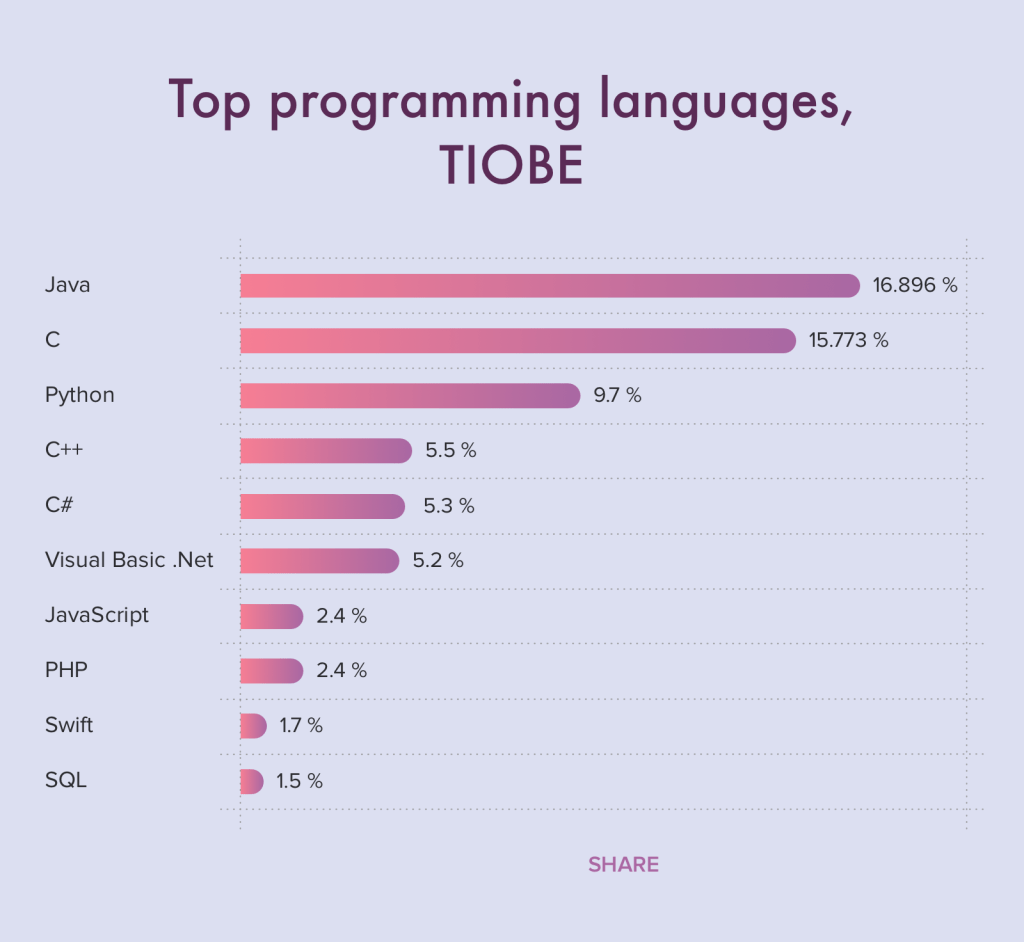
Today, Python is one of the most widely used and loved languages in the world. It is ranked among the top five languages by various surveys and indices, such as the TIOBE Index, the PYPL Index, and the Stack Overflow Developer Survey. It is used by many prominent companies and organizations, such as Google, Facebook, Netflix, NASA, and Spotify. It is also taught in many schools and universities as an introductory language for computer science.

Top programming languages 2022

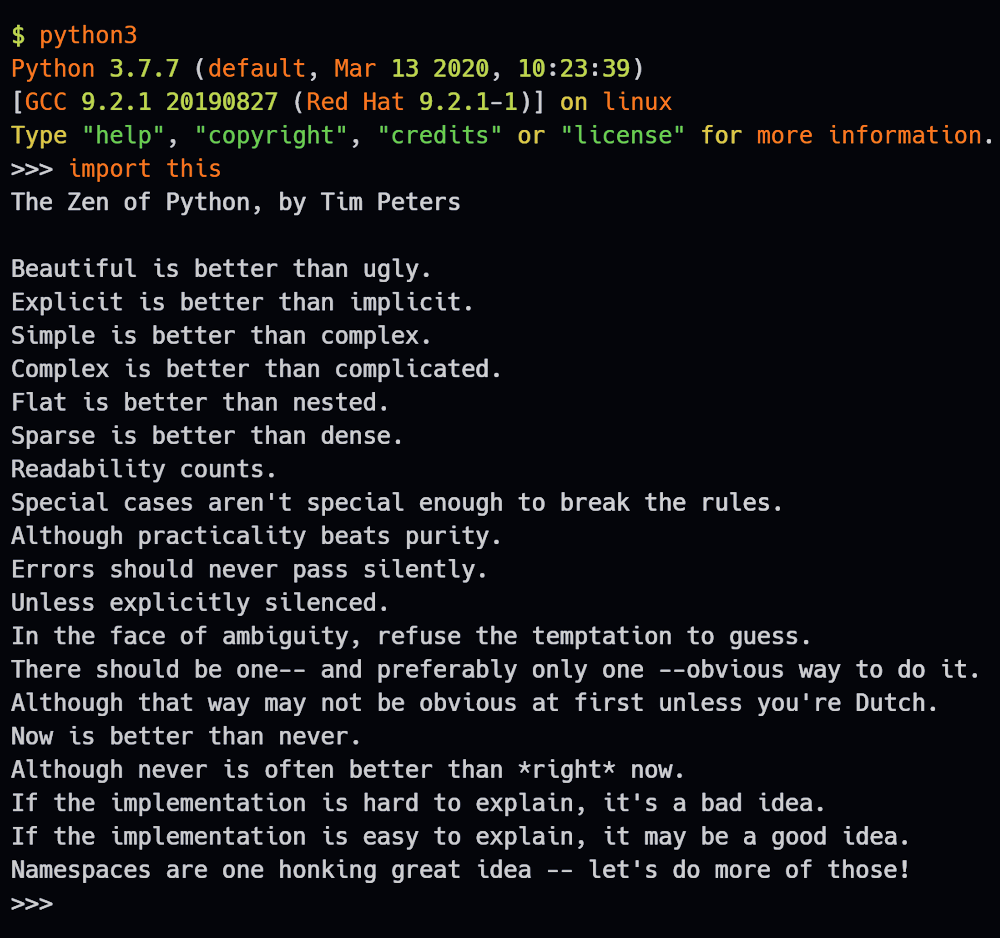
Python is not only a language but also a philosophy. It has a set of principles that guide its design and implementation, known as the Zen of Python. These principles emphasize simplicity, clarity, beauty, and pragmatism. They can be accessed by typing “import this” in the Python interpreter. Here are some of them:

  • Beautiful is better than ugly.
  • Explicit is better than implicit.
  • Simple is better than complex.
  • Complex is better than complicated.
  • Readability counts.
  • There should be one– and preferably only one –obvious way to do it.
  • If the implementation is hard to explain, it’s a bad idea.
  • If the implementation is easy to explain, it may be a good idea.
Zen of Python

Python is more than just a language; it’s a way of thinking and solving problems. It’s a language that encourages creativity, curiosity, and collaboration. It’s a language that makes programming fun and enjoyable. If you want to learn more about Python or start your own journey with it, you can visit the official website or Stay tuned for more educational content coming soon! Happy coding! ✌

Create first program in MATLAB

Hello and welcome to this tutorial on how to create your first program in MATLAB! MATLAB is a powerful and versatile programming language that can be used for many applications, such as data analysis, simulation, visualization, and more.

In this tutorial, you will learn:

  • the basics of MATLAB syntax
  • how to write and run a simple script
  • how to use some built-in functions and operators.

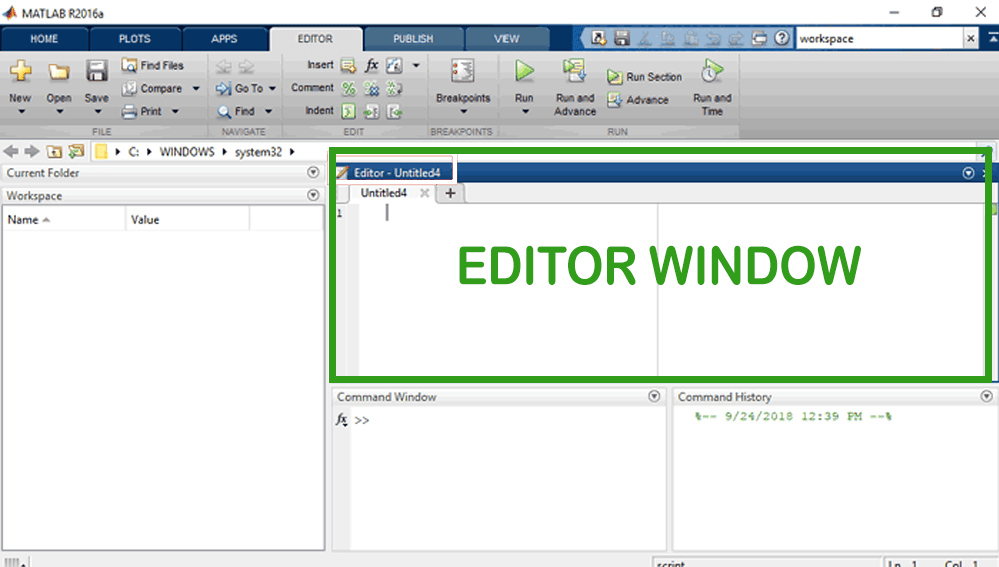
By the end of this tutorial, you will be able to create your own MATLAB programs and explore the possibilities of this amazing language. To get started, you will need to have MATLAB installed on your computer. You can download MATLAB from the official website or use an online version. Once you have MATLAB ready, you can open the MATLAB editor by clicking on the “New Script” button on the toolbar or by typing “edit” in the command window. The MATLAB editor is where you can write and edit your code, as well as save and run your scripts.

The MATLAB Editor

A script is a file that contains a sequence of MATLAB commands that can be executed together. A script can have any name, but it must have the extension “.m”. For example, you can name your script “my_first_program.m”. To write your first program, you will use some basic commands that print text to the command window. The command window is where you can interact with MATLAB by typing commands and seeing the results. To print text to the command window, you can use the “disp” function or the “fprintf” function. For example:

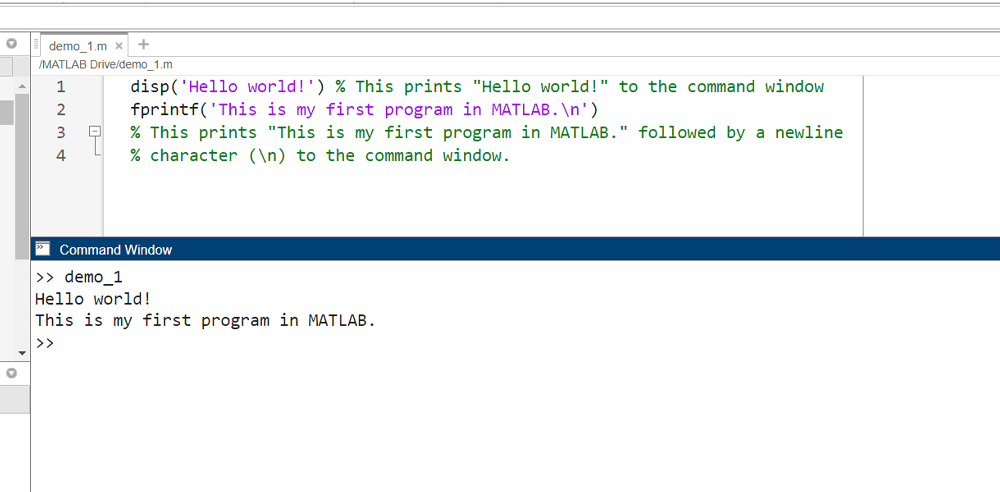
disp('Hello world!') %This prints "Hello world!" to the command window
fprintf('This is my first program in MATLAB.\n') %This prints "This is my first program in MATLAB." followed by a newline character (\n) to the command window.
Output of above code

You can also use variables to store values and use them in your commands. A variable is a name that represents a value, such as a number or a string. To assign a value to a variable, you can use the “=” operator. For example:

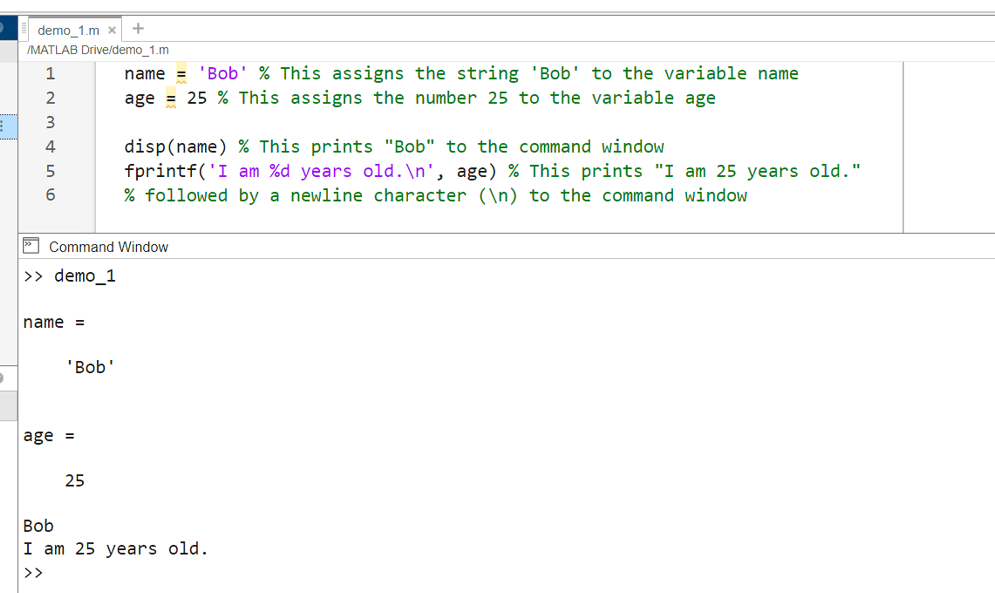
name = 'Bob' % This assigns the string 'Bob' to the variable name
age = 25 % This assigns the number 25 to the variable age

You can then use the variables in your commands by typing their names. For example:

disp(name) % This prints "Bob" to the command window
fprintf('I am %d years old.\n', age) % This prints "I am 25 years old." 
% followed by a newline character (\n) to the command window
Output of above code

Note that when using “fprintf”, you need to specify the format of the value you want to print using a format specifier, such as “%d” for integers or “%s” for strings. You also need to separate the format string and the value with a comma.

To run your script, you can click on the “Run” button on the toolbar or type the name of your script (without the extension) in the command window.
Congratulations! You have just created and run your first program in MATLAB! You can now experiment with different commands and variables and see what happens. You can also use some built-in functions and operators that perform common tasks and calculations. For example:

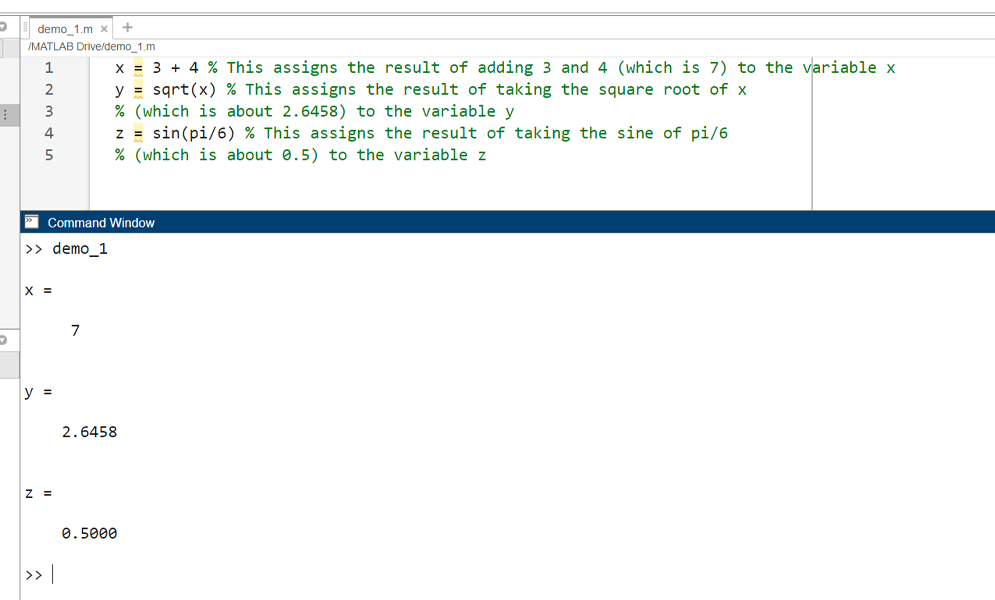
x = 3 + 4 % This assigns the result of adding 3 and 4 (which is 7) to the variable x
y = sqrt(x) % This assigns the result of taking the square root of x (which is about 2.6458) to the variable y
z = sin(pi/6) % This assigns the result of taking the sine of pi/6 (which is about 0.5) to the variable z
Output of above code

You can find more information about MATLAB functions and operators in the documentation or by using the “help” or “doc” commands in the command window. For example:

help sqrt % This displays help information about the sqrt function
doc sin % This opens a web page with documentation about the sin function.


That’s it for this tutorial! I hope you enjoyed learning how to create your first program in MATLAB and that you are excited to learn more. MATLAB is a fun and easy way to express your ideas and solve problems with code. Happy coding! ✌

Introduction to MATLAB

MATLAB is a programming and numeric computing platform used by millions of engineers and scientists to analyze data, develop algorithms, and create models. In this blog post, we will learn some basic features and capabilities of MATLAB and how to use them for various tasks.

What is MATLAB?

MATLAB stands for MATrix LABoratory. It is a high-level language that expresses matrix and array mathematics directly. It also has a desktop environment tuned for iterative analysis and design processes with a programming language that includes the Live Editor for creating scripts that combine code, output, and formatted text in an executable notebook.

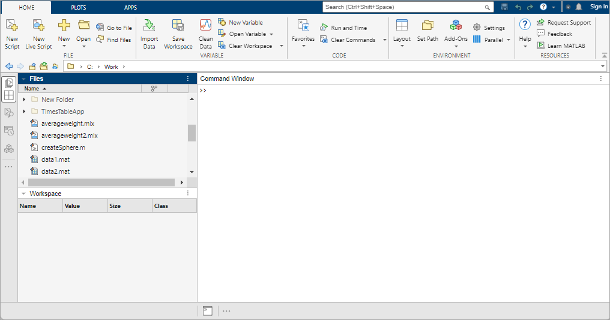
https://in.mathworks.com/help/matlab/learn_matlab/desktop.png
MATLAB Desktop environment

MATLAB has many built-in functions and toolboxes for different domains, such as math, graphics, programming, app building, parallel computing, web and desktop deployment, etc. You can also create your own functions, classes, or apps using MATLAB. MATLAB can also interact with other languages, such as Python, C/C++, Fortran, Java, and others.

How to use MATLAB?

To use MATLAB, you need to have a license that allows you to access it online or install it on your computer. You can check your eligibility for MATLAB Online here. If you have MATLAB installed on your computer, you can launch it by clicking on the MATLAB icon or typing matlab in the command prompt.

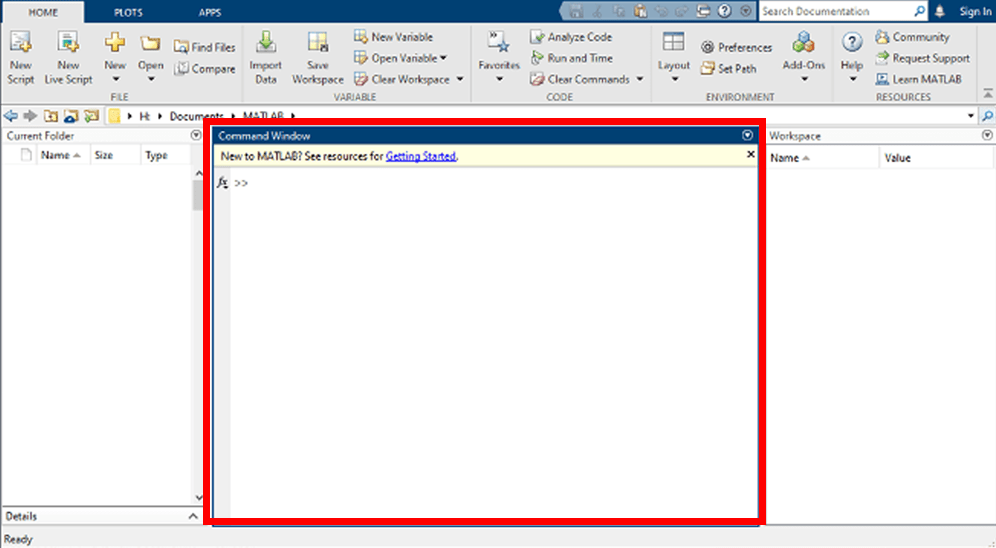
When you launch MATLAB, you will see a window with several panels. The main panel is the Command Window, where you can type commands and see the results. You can also use the Command History panel to view or reuse previous commands. The Workspace panel shows the variables that you have created or imported in your current session. The Current Folder panel shows the files and folders in your current working directory. You can also use the Editor panel to create or edit scripts or functions.

shows command window of MATLAB
MATLAB command window

To get started with MATLAB, you can try some simple commands in the Command Window. For example:

  • To create a variable x with the value 5, type x = 5 and press Enter.
  • To perform arithmetic operations on x, type x + 2, x - 3, x * 4, or x / 5 and press Enter.
  • To create a vector v with the values 1, 2, 3, 4, and 5, type v = [1 2 3 4 5] and press Enter.
  • To create a matrix A with two rows and three columns, type A = [1 2 3; 4 5 6] and press Enter.
  • To perform matrix operations on A, type A', A + A, A - A, A * A, or A / A and press Enter.
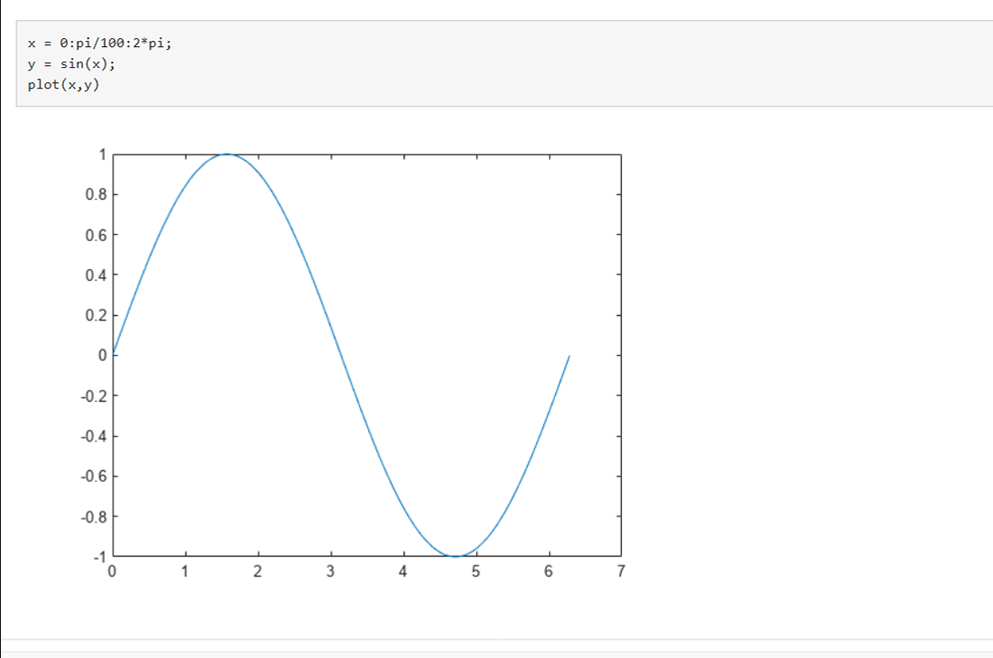
  • To plot a sine wave using the vector v, type plot(v, sin(v)) and press Enter.
plot of sine function graph in MATLAB.
Plot of sine graph

You can also use the Help menu or the help command to get more information about any function or topic in MATLAB. For example:

  • To get help on the plot function, type help plot or doc plot and press Enter.
  • To get help on the topic of matrices, type help matrices or doc matrices and press Enter.

What can you do with MATLAB?

MATLAB is a versatile platform that can be used for various purposes. Here are some examples of what you can do with MATLAB:

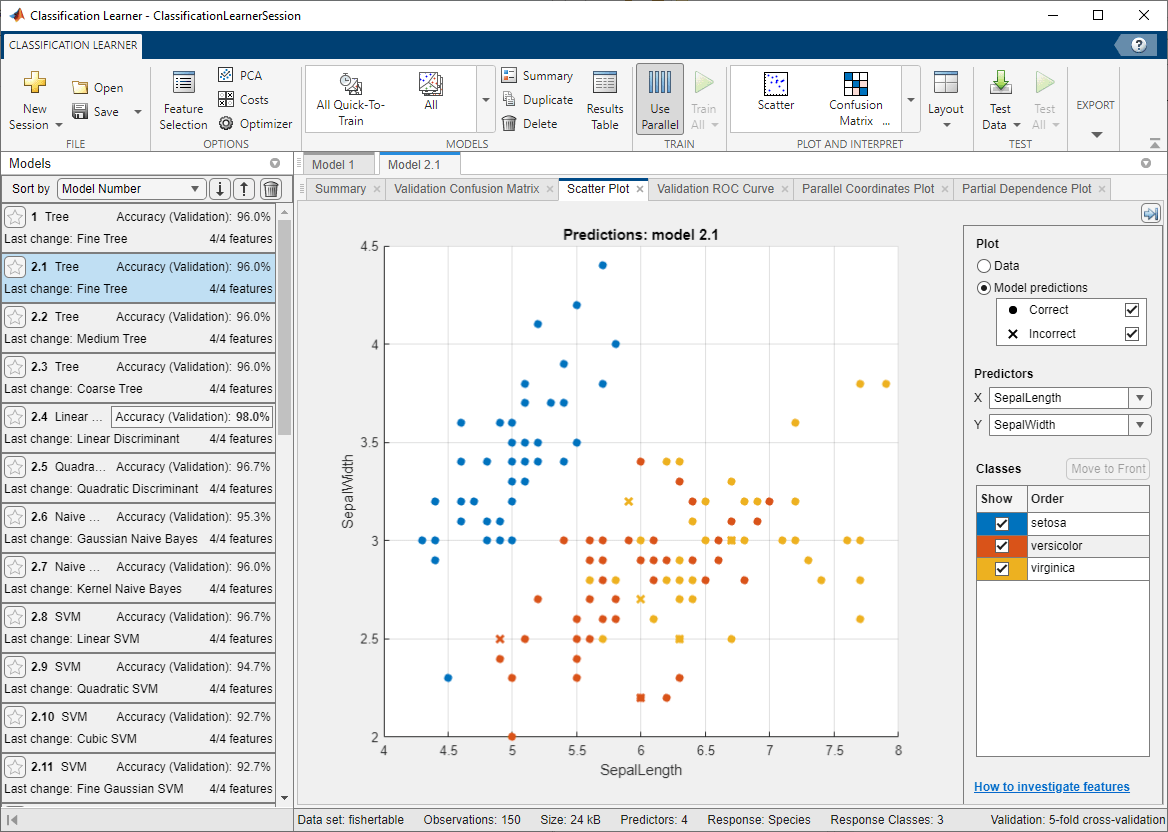
  • Data Analysis: You can use MATLAB to explore, model, and analyze data from various sources, such as files, databases, web services, etc. You can also use MATLAB to perform statistical tests, machine learning, deep learning, optimization, etc. [A machine learning example in MATLAB]
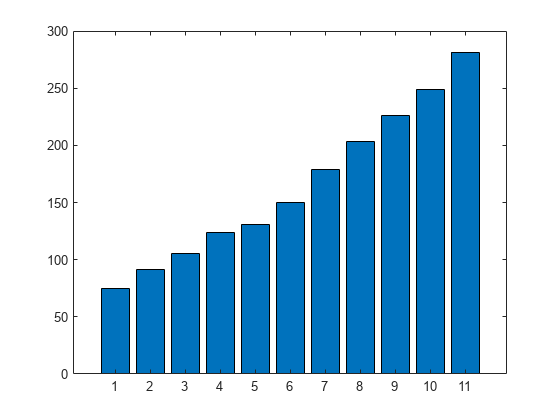
  • Graphics: You can use MATLAB to visualize and explore data using various types of plots, such as line plots, bar plots, pie charts, histograms, scatter plots, etc. You can also customize your plots by adding titles, labels, legends, colors, etc. [A bar plot example in MATLAB]
  • Programming: You can use MATLAB to create scripts, functions, and classes that implement your algorithms or logic. You can also use MATLAB to debug your code using breakpoints, watch expressions, step commands, etc.
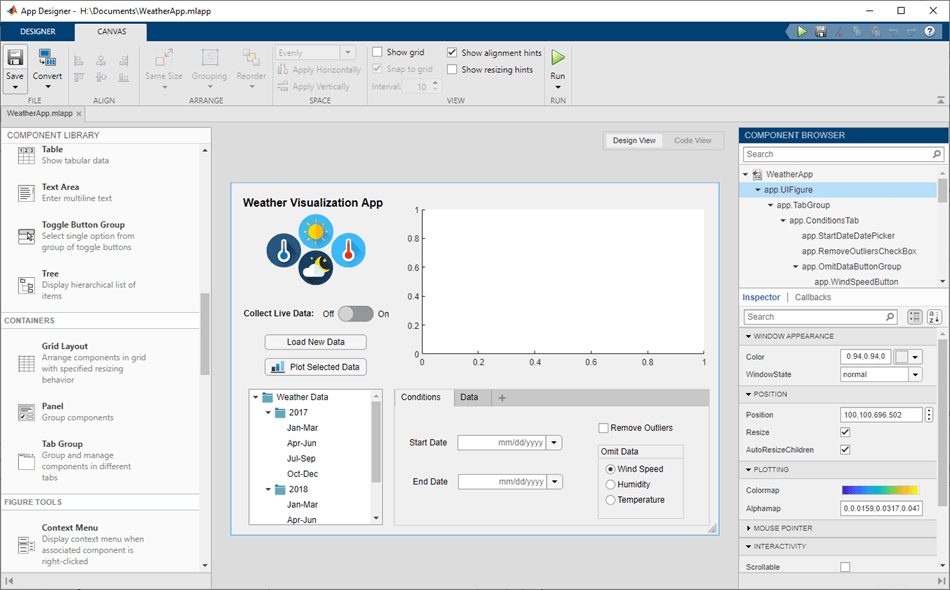
  • App Building: You can use MATLAB to create desktop and web apps that interact with your users using graphical user interfaces (GUIs). You can also use MATLAB apps to see how different algorithms work with your data. [App Designer development environment in MATLAB]
  • External Language Interfaces: You can use MATLAB to call functions from other languages such as Python, C/C++, Fortran, Java, and others. You can also use these languages to call MATLAB functions or scripts.
  • Hardware: You can use MATLAB to connect to and control hardware devices such as sensors, cameras, Arduino boards, Raspberry Pi, etc. You can also use MATLAB to acquire and process data from these devices.
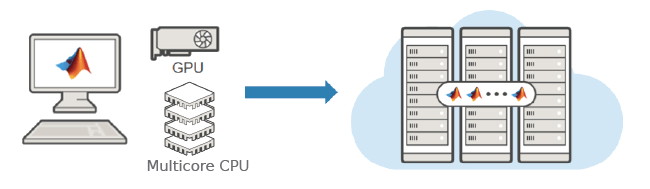
  • Parallel Computing: You can use MATLAB to perform large-scale computations and parallelize simulations using multicore desktops, GPUs, clusters, and clouds. You can also use MATLAB to distribute your code or apps to multiple machines or devices. [Parallel computing graphics]
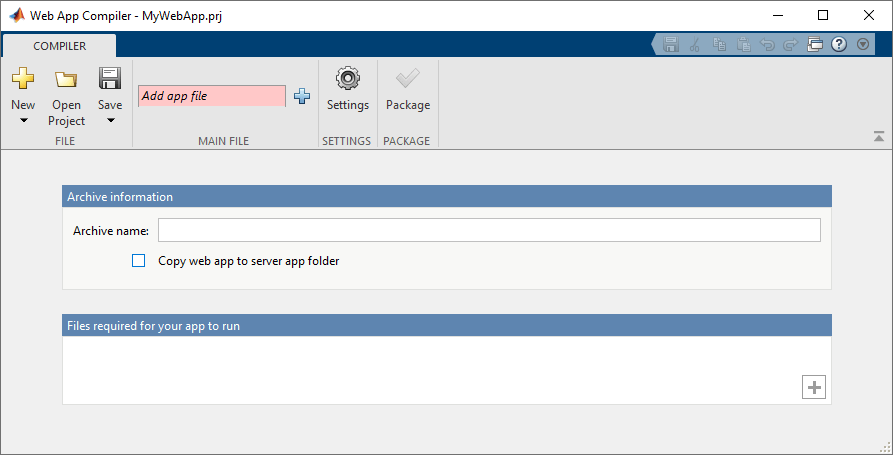
  • Web and Desktop Deployment: You can use MATLAB to share your code or apps with others who do not have MATLAB. You can also use MATLAB to deploy your code or apps to enterprise applications, embedded devices, or web servers. [A web deployment example in MATLAB]

Conclusion

In this blog post, we have learned some basic features and capabilities of MATLAB and how to use them for various tasks. MATLAB is a powerful and flexible platform that can help you with your academic or professional projects. If you want to learn more about MATLAB, you can visit the official website or the documentation. You can also find many online courses, tutorials, books, and videos on MATLAB. Happy learning! 😊

Welcome to Nucleux Zero!

Hello and welcome to Nucleux Zero, a blog for educational content on programming language and mathematics, physics. My name is Ankit and I am an Engineer Graduate. I have created this blog to share my knowledge and enthusiasm for these topics with you. Programming language and mathematics are closely related, and physics is a fascinating subject to explore. I believe that learning these topics can help you develop your logical thinking, problem-solving, and creativity skills. They can also open up many opportunities for your academic or professional career. In this blog, I will post articles, tutorials, videos, quizzes, and projects on various topics related to Programming language and Mathematics, Physics. Some of the topics I plan to cover are:

  • Introduction to MATLAB
  • The Fibonacci sequence and its applications
  • The Doppler effect and its uses
  • How to create a simple calculator app in Python
  • The Pythagorean theorem and its proofs
  • The Newton’s laws of motion and their examples
  • And many more!

I hope you will find this blog interesting and useful. I also hope you will join me in this learning journey and share your thoughts and questions with me. You can subscribe to this blog by entering your email address below. You can also leave comments or feedback on any of the posts. I would love to hear from you! Thank you for visiting Nucleux Zero. Stay tuned for more educational content coming soon! ✌

Create your own website, free on WordPress.com.Create your own website.
Start free